1.1.1.1 + WARP: Safer Internet
- 4.1
- Rating
- 100.00M
- Installs
- Free
- Price

 Analysis by App-foxy
When I install a privacy tool, I want to know what happens between tapping the switch and reaching the website or app I actually need. That is why I spent time with 1.1.1.1 + WARP as a day-to-day connection tool rather than treating it as a single-button promise. Developed by Cloudflare, Inc., this free Tools app is designed for people who want a simpler way to add privacy to ordinary mobile browsing and app use.
The starting situation is familiar: I am on public Wi-Fi, moving between mobile data and a home network, or simply uncomfortable with the idea that every connection should be left untouched. The app presents itself as “A More Private Internet,” while its short store description identifies the service as “1.1.1.1 + WARP.” In practice, that gives the app two closely related roles: a DNS-focused option and WARP, which is intended to protect more of the device’s traffic.
That distinction matters. I would not install it expecting a complete anonymity system, a replacement for every security habit, or a tool that makes an untrusted website trustworthy. I see it as a practical privacy layer for normal phone use. It is available free of charge, carries an Everyone age rating, and supports devices running Android 7.0 or later. Its current version is 6.38.7, so the experience may change as Cloudflare continues to update it.
You May Also Like

 Blood Strike: 2.5 Anniversary
Blood Strike’s Loadouts Turn Every Drop Into a Tactical Gamble
A close look at Blood Strike’s custom loadouts: how fast access to signature weapons reshapes its battle royale rhythm, rewards preparation, and narrows the gap between fights.

 Pandora - Music & Podcasts
Pandora’s Music Is Easy to Start, but Harder to Recover
Pandora’s strength is its low-effort path from a seed to a station. Its weak spot is how much confidence it asks you to place in connection, setup, and quiet recovery.

 8 Ball Pool
 Is Built on Rivalries, Rematches, and Routine
A close look at the rivalries, rematches, shared routines, and unanswered safety questions that turn a quick pool match into a persistent mobile community.

 Samsung Music
’s Quiet Strength Is Playing What You Already Own
Its reach comes less from spectacle than from dependable access to a personal library. That simplicity is both the app’s strongest retention engine and its ceiling.

 AccuWeather: Weather Radar
AccuWeather Review: A Quick, Clear Forecast for Everyday Decisions
For everyday plans, the best forecast is the one you can understand quickly. AccuWeather makes rain timing, radar, and local conditions easy to act on, with a few trade-offs.

 Hill Climb Racing
Why Hill Climb Racing Still Turns Crashes Into One More Run
A tiny car, a bumpy hill and one more upgrade: Hill Climb Racing keeps resurfacing because its simple chaos makes every near-miss feel personal.
More From Our News Desk



From an ordinary connection to a more private one
I find it useful to think of 1.1.1.1 + WARP as a shared household routine rather than a set-and-forget shield: one person can try it on a phone, then explain what the connection indicator means before anyone else relies on it. That small check helps a family notice when a device changes networks or an app behaves differently. From there, I would focus on deciding who sets it up and what each person should expect.
Starting with the right mode
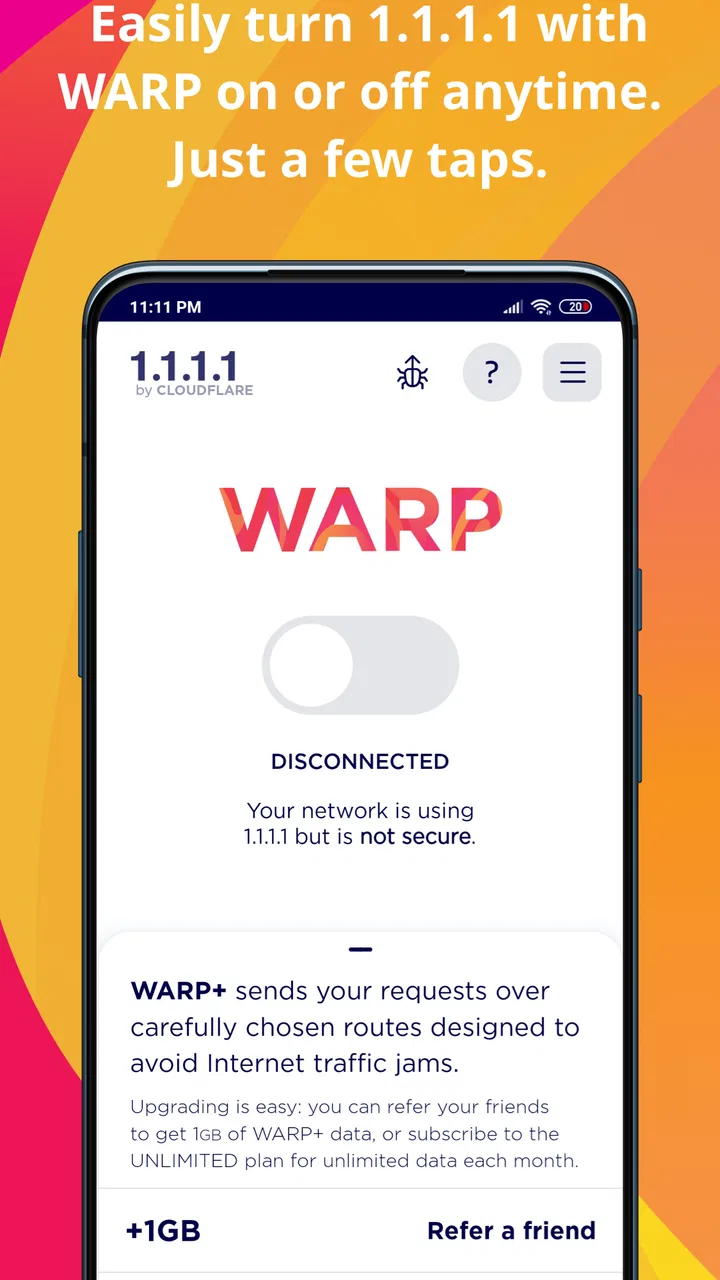
The first useful decision is choosing how much of the app I want active. A DNS-only approach is the lighter, more focused choice when I mainly want name lookups handled through Cloudflare’s resolver. WARP is the broader option, designed to route device traffic through its protected connection. I would start with the simpler mode if I am troubleshooting a particular connection or want to understand the app gradually, then move to WARP when I want coverage beyond browser lookups.
This is one of the app’s strengths compared with manually changing network settings. I do not need to hunt through several system menus every time I want to switch. The app gives the decision a visible place, which is helpful for someone who knows they want more privacy but does not want to learn the details of DNS configuration first.
There is also an important expectation to set before the first tap: privacy protection and anonymity are not identical. WARP can change how traffic travels between the phone and the service, but it should not be treated as a magic way to disappear from websites, accounts, or apps. I still use strong passwords, keep software updated, and think carefully before entering personal information.
The connection handoff
After selecting the desired mode, the app has to hand control to the phone’s networking system. That handoff is the part many casual users never think about, but it explains several everyday moments of friction. A system-level connection can affect more than the browser, and Android may show a VPN-style connection indicator or ask for approval before the service becomes active. That is normal for this kind of tool, not a sign that the app has failed.
Once enabled, I check the result in the app rather than assuming that a single tap completed everything. The useful habit is to look for the active state before opening a banking app, joining a work call, or starting a download. If the connection drops while I move from Wi-Fi to mobile data, I also check again instead of relying on the previous status.
This workflow is more reliable than leaving the app switched on and forgetting about it. Network changes, battery-saving behavior, captive portals, and restrictive public networks can all create situations where a privacy connection needs attention. The app makes activation straightforward, but the user still needs to notice whether the handoff succeeded.
A realistic public Wi-Fi example
Imagine I am working from a café. I connect to the café’s Wi-Fi, open the app, and enable WARP before checking email or sending a document. The immediate outcome I want is not a dramatic new interface; it is a quieter connection routine. I can continue using the browser and other supported phone traffic without separately configuring each app.
If the café network requires a sign-in page, I may need to complete that step before WARP can work normally. This is a practical trade-off: privacy tools can interfere with the way public networks identify and authorize new users. My usual fix is to connect, complete the network’s access page, then activate the privacy connection. If the page refuses to load, temporarily turning the service off until access is granted is often the least frustrating route.
That example also shows why I do not judge the app only by its switch. The complete workflow is connect, authorize the network, enable the chosen mode, confirm the state, and then use sensitive services. Skipping the middle steps can leave me either offline or falsely confident.
Moving between apps and networks
The handoff is broader when WARP is active because I am not thinking only about one browser tab. I might begin in a news app, move to a messaging service, and then open a cloud document. The appeal is that I do not have to configure each destination separately. For a person who wants one consistent privacy routine across ordinary phone use, that is more convenient than relying on browser-only protection.
At the same time, system-wide coverage can expose incompatibilities that a browser extension would never encounter. A work application, game, streaming service, or corporate network may behave differently when traffic passes through an additional connection layer. If a particular app suddenly cannot sign in or a call becomes unreliable, I test the simplest explanation first: turn WARP off, repeat the action, and compare the result.
This is a useful troubleshooting method because it avoids blaming the wrong component. If the service works normally with WARP disabled, I have found a compatibility issue rather than a general phone problem. I can then decide whether that app is important enough to justify leaving WARP off during use.
What the result feels like in daily use
For me, the best result is reduced effort. I do not have to remember a separate privacy step for every browser or manually edit DNS details after changing networks. The free price also makes experimentation easy: I can try the service on a spare device or use it during travel without committing to a subscription before understanding whether it fits my routine.
The app’s popularity supports that impression. It has passed one hundred million installs, with an average rating of 4.1 from around one point three million ratings. Those figures do not prove that every connection will be smooth, but they do show that the product has reached a very broad Android audience and that many people find the basic idea useful.
My preferred everyday workflow is simple. Before using an unfamiliar network, I connect to it, finish any access step, activate WARP, and confirm the status. When I return to a trusted network and notice a service behaving strangely, I compare performance with the protection disabled. This keeps the app useful without turning it into something I blindly blame or blindly trust.
Where the flow breaks
The main weakness is that “one tap” does not mean “zero decisions.” I still need to choose between DNS and WARP, approve the system connection, handle network sign-in pages, and recognize when another app does not cooperate. Someone who wants a completely invisible background utility may find those moments annoying.
Speed and reliability can also vary with the network path. Any extra routing layer may introduce a delay or affect how a service sees the connection. I would not use this app as a performance tool, and I would not assume that WARP will improve every slow network. If my priority is the lowest possible latency for competitive gaming or a highly sensitive work connection, testing the exact service matters more than trusting the general privacy goal.
Another limitation is that privacy protection does not remove the need for judgment. It cannot stop me from visiting a malicious page, sharing information with an app, or signing into a service that already knows who I am. It also does not turn public Wi-Fi into a trusted home network. The app can make the connection path more private, but it cannot repair poor security choices at the other end.
People looking for location switching should be especially careful about their expectations. I would not choose this app simply because I want websites to believe I am in a different country. Its value, in my view, is the protected connection workflow, not a promise of unrestricted access to region-specific services. Those are different goals and often require different tools.
Cost, upgrades, and practical commitment
The basic app is free, which is a meaningful advantage for casual users. There are in-app purchases priced at $4.99 per item, so I would review any upgrade screen carefully and decide whether the additional option solves a problem I actually have. I would not pay automatically just because the free mode is useful; I would first test it on my home network, mobile data, public Wi-Fi, and the apps I use most.
That trial approach is particularly important for people who work remotely. Before relying on WARP during a deadline, I would test video calls, file transfers, company sign-in pages, and any security software required by work. A privacy tool that is excellent for browsing may still need to be disabled for a specific corporate workflow. The right answer is not always “leave it on everywhere”; it is knowing when the protection helps and when the connection requirement wins.
Who should use it, and who should skip it
I recommend this app to Android users who want an approachable privacy layer and prefer a central switch over manual network configuration. It is a good fit for travelers, students, people who regularly use shared Wi-Fi, and anyone who wants to understand the difference between DNS protection and broader device traffic protection without starting with advanced networking tools.
I would also suggest it to families who want an Everyone-rated tool that is easy to explain. The important conversation is not “this makes you safe from everything,” but “turn it on before using an unfamiliar network, and check it when the connection changes.” That is a realistic habit a nontechnical user can maintain.
I would skip it, or at least test it cautiously, if my main goal is maximum gaming performance, guaranteed access to a company network, location spoofing, or full anonymity. In those cases, a specialized solution may be better suited. I would also skip leaving it enabled by habit if I am unwilling to troubleshoot occasional compatibility problems; a privacy feature is only useful when I can manage its side effects.
My final take after following the full workflow
What I like most about 1.1.1.1 + WARP is the handoff from technical setup to an everyday action. Instead of asking me to become a network administrator, it gives me a clear way to choose a mode, activate it, and check whether the connection is working. That makes privacy feel more usable, especially on public Wi-Fi and while moving between networks.
What keeps me from calling it a complete security solution is equally clear: the protection has boundaries, and the connection can occasionally clash with captive portals, work systems, or performance-sensitive services. I need to treat the switch as one part of a sensible routine, not as permission to stop thinking.
Cloudflare, Inc. has made a free Tools app that is easy to try and broad enough for normal mobile use. With over one hundred million installs and roughly seventeen thousand written reviews, it has become a familiar option rather than an obscure experiment. My recommendation is straightforward: install it if you want a low-effort privacy improvement, test it across the networks and apps that matter to you, and keep a backup plan for the moments when the workflow breaks. The best result comes from using WARP deliberately, not blindly.
FAQs for 1.1.1.1 + WARP: Safer Internet
01What is 1.1.1.1 + WARP and how does it work?
1.1.1.1 + WARP is a mobile app designed to enhance internet security and privacy. It routes your internet traffic through Cloudflare's secure network, which helps protect your data from potential snoopers. Unlike a traditional VPN, WARP aims to improve your internet speed by optimizing the routing of your data.
02Is 1.1.1.1 + WARP free to use?
Yes, 1.1.1.1 + WARP offers a free version that provides basic internet security features. However, for additional benefits such as faster speeds and enhanced privacy, users can opt for the WARP+ subscription. This paid version uses Cloudflare's premium network for even better performance.
03How does 1.1.1.1 + WARP affect internet speed?
WARP is designed to optimize your connection by routing traffic through Cloudflare's network, often resulting in improved speed. However, actual performance can vary based on your location and network conditions. While some users experience faster speeds, others might see little change or a slight decrease.
04Can 1.1.1.1 + WARP be used for streaming or bypassing geo-restrictions?
1.1.1.1 + WARP is primarily a security and privacy tool and is not specifically designed to bypass geo-restrictions for streaming services. While it can sometimes access content unavailable in your region, it is not as reliable as dedicated VPNs for this purpose.
05Is my data safe with 1.1.1.1 + WARP?
Yes, 1.1.1.1 + WARP focuses on enhancing your online privacy by encrypting your internet traffic. Cloudflare promises a no-logging policy, meaning they don't track or store your browsing data. However, it's always important to review the app's privacy policy to understand data handling practices fully.
Pros
- Improves internet speed effectively.
- Simple
- user-friendly interface.
- No ads or data tracking.
- Free to use with premium options.
- Enhanced privacy and security features.
Cons
- Limited customization options.
- May slow down certain apps.
- Occasional connection drops.
- Some features require a subscription.
- Compatibility issues with older devices.

1.1.1.1 + WARP: Safer Internet
Gallery